How to use Vekfinance
The app has five everyday pages: Home, Accounts, Transactions, Budget and Debts. Everything else lives under More. This guide walks through them in that order. Jump to whatever you need.
Getting started
Four steps, about five minutes.
- 1
Create your account
Pick a username, a password of at least 12 characters, and your email address. The email is required: it is how you reset a forgotten password.
- 2
Answer a few questions
Setup asks what you want help with, where your paycheck lands, and a few budget amounts. Skip anything you are not sure of. You can change all of it later in Settings.
- 3
Bring in your money
Connect your bank from Accounts, or bring in a file from your bank with Import CSV. Once a bank is connected, new transactions arrive on their own.
- 4
Check Home once a week
Home tells you how the month is going in plain words and lists anything that needs your answer. Answer those and you are up to date.
01
Home
How am I doing, and what needs my attention?
Home is the first page you see. From top to bottom:
- This month in plain words: two or three sentences about what came in, what went out, and when you could be debt free.
- Needs your answer: things only you can settle, most important first. For example, a bank that needs you to sign in again, money that may run out before payday, or transactions waiting for a category. Each one has a button that takes you straight to the fix. They stay until they are done.
- Ideas: optional suggestions, like starting a savings goal. You can hide any idea, and bring hidden ideas back from Settings.
- The tiles: Income, Spent, Unallocated and more. Tap any tile to see, in one sentence, how that number is figured.
- Show charts: spending against income, net worth over time, and spending by category stay folded away until you open them.
Close last month
02
Accounts
Everything you own and owe, in one list.
Accounts lists your checking, savings, cards, loans and investments, with your net worth at the top (what you own minus what you owe).
- Connect a bank: you sign in to your bank through Plaid, the service most banks use to share data safely. Vekfinance never sees your bank password. Most large US and Canadian banks are supported.
- Add an account by hand: for a loan, a house, a car, or a bank that cannot connect. Update the balance when it changes.
- Import a file: download your transactions from your bank's website and bring them in with Import CSV. Transactions already in the app are skipped.
- Your paycheck account: tell the app which checking account your pay lands in (in Settings, under Goal & income). Paydays and the cash forecast use it.
- Closed at the bank: if your bank stops showing a connected account, it is marked Closed at the bank. Its history is kept and its balance no longer counts.
Loans usually need to be added by hand
03
Transactions
Every purchase, payment and deposit.
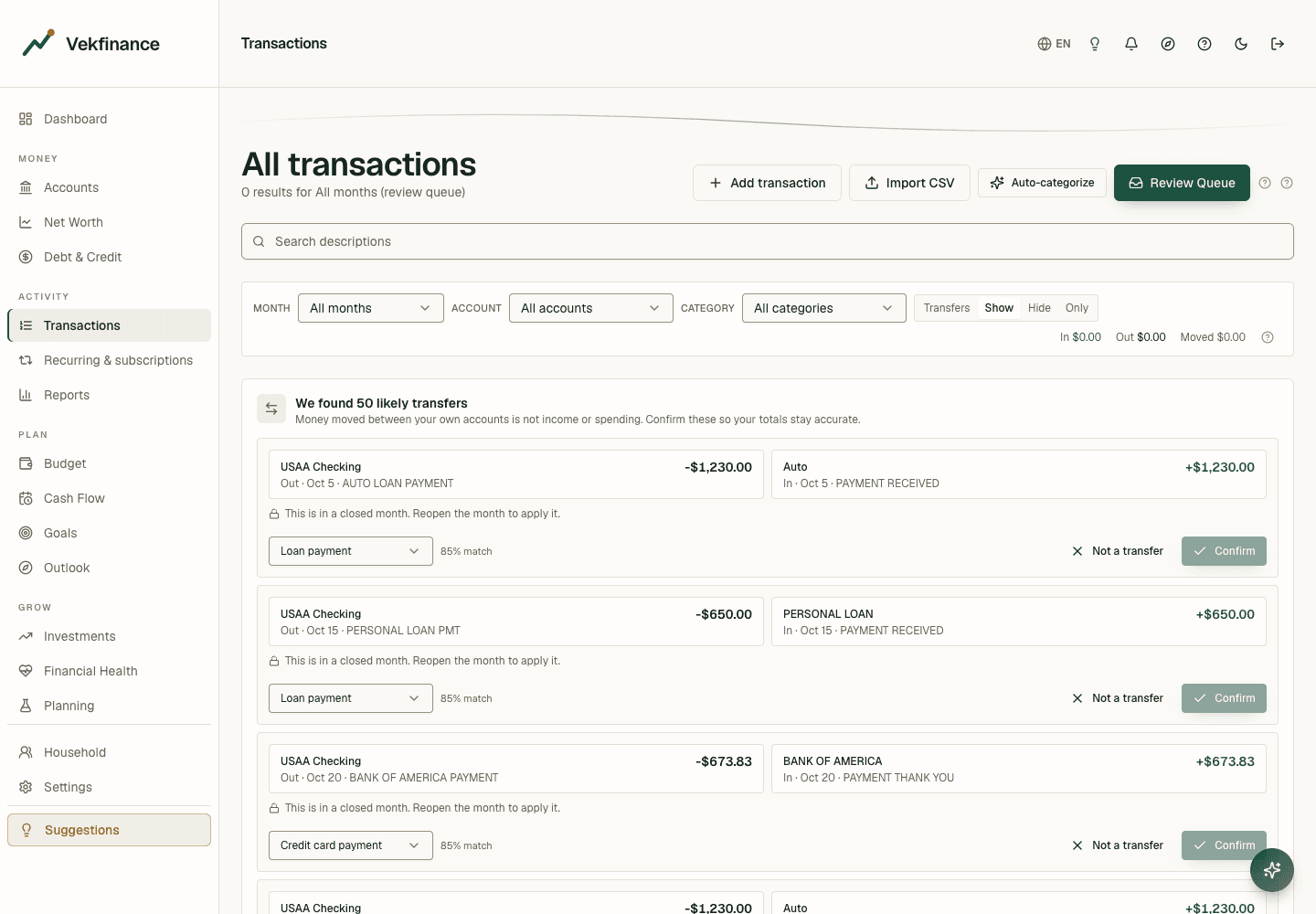
Transactions lists every transaction. Search by name, or filter by month, account or category. Tap a row to change its category, date, amount or note.
- Waiting for a category: most transactions are sorted for you. The few the app is not sure about wait for you. Pick a category once and the app remembers it for that store next time.
- Money moved between your own accounts: when money leaves one of your accounts and arrives in another, the app asks you to confirm it was a transfer. Transfers do not count as spending or income.
- Closed months are locked so nothing changes by accident. Unlock a month from its summary if you need to fix something.
- The number beside Transactions in the menu is how many items are waiting for you.
- Refunds: money back in a spending category, like a return, lowers what you spent in that category instead of counting as income. Tax refunds count as income.
Fix several at once
04
Budget
A monthly amount for each kind of spending.
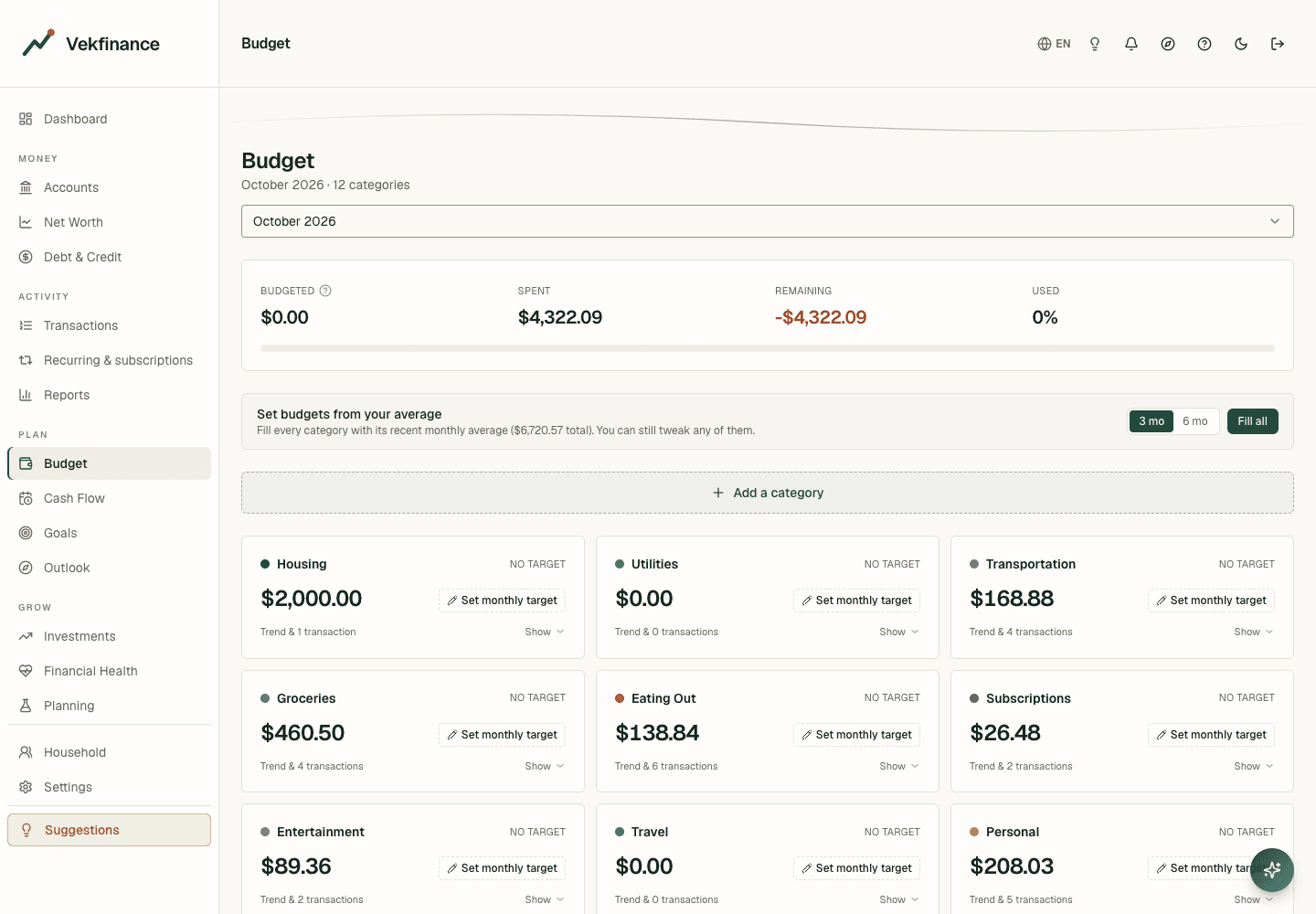
Budget shows each spending category with your monthly amount, what you have spent so far, and a bar that fills as the month goes on.
- Start from your average: the app can fill in each amount from what you usually spend. Change any number.
- Unallocated is the money that came in this month and has not yet been spent, saved, invested or used to pay down debt.
- Add your own categories any time. Deleting a category asks where its transactions should go.
Amounts start fresh each month, unless you roll them over
05
Debts
Your debt-free date and the order to pay things off.
Debts (Debt & credit in the menu) shows each card and loan, the date it should be paid off, and the month you could be debt free. You choose the order to pay off your debts:
Avalanche
Extra money goes to the debt with the highest interest rate first. This costs the least in interest.
Snowball
Extra money goes to the smallest balance first. It costs a little more, but you see debts disappear sooner.
- Monthly total: tell the app how much you pay toward debt each month. Anything above the minimum payments goes to the debt your chosen order picks next. This is the one place to set extra debt payments.
- Pick a payoff date: choose a debt and a date, and the app tells you the monthly payment that gets you there.
- Utilization is how much of your card limits you are using. Lower is better for your credit score. Staying under 30% is a common rule of thumb.
06
Outlook
What is ahead for your money.
Outlook is under More. It has four tabs:
- Timeline: the big moments ahead, like your debt-free month or reaching a savings goal, and how setting a little extra aside each month moves them closer.
- Health: a score from 0 to 100, with the few changes that would raise it most.
- What if: try a raise, a pay cut, spending less, or a few months without pay, and see what happens to your savings and net worth.
- Retirement: where your savings are headed and how much you may need.
What Runway means
07
More
Everything else, one tap away.
On a computer, More is in the menu on the left. On a phone, tap More in the bar at the bottom of the screen. Inside:
- Net worth: what you own minus what you owe, over time. Add a house or a car by hand so the number is complete.
- Cash flow & bills: besides the forecast and the bill calendar, the Bills & subscriptions view lists the bills and subscriptions the app saw repeating, with what they cost each month and each year, and one form to add any it missed.
- Reports: ready-made charts of your spending and income, plus a builder to make your own chart.
- Cash flow: your checking balance day by day for the coming weeks, with paydays and bills. It warns you if the balance could drop below zero.
- Goals: savings goals, like an emergency fund or a trip, with how much to set aside each month.
- Outlook: see the section above.
- Investments: your brokerage and retirement accounts, what you put in, and how they have done.
- Household and Business: share a view with your partner, and keep business money apart from personal money.
08
The assistant and your privacy
Ask questions about your money in plain words.
Tap the round button in the bottom corner to ask a question, like "Where did my money go this month?" The answer is based on your own numbers.
Before a question is sent, your finances are boiled down to a rough summary: ranges like "$10k to $25k", general categories and time periods. Your transactions, store names, account names and exact balances never leave. Every message that was sent is listed in your Data sharing log, under Privacy in Settings.
Not a financial advisor
09
Settings, text size and help
Make the app work the way you like.
Settings holds your profile and security, your goal and pay schedule, categories, alerts, household, billing and your data, and language. Accounts and bank connections are managed on the Accounts page.
- Bigger text: tap the A button at the top of any page, or go to Settings, and choose Normal, Large or Extra large. Your choice follows you to every device.
- Language: English or Spanish, in Settings.
- Hide amounts: tap the eye button at the top of the app to blur balances, totals and charts on that device, handy in public or while sharing your screen. Tap it again to show them, or use the Hide amounts switch in Settings, Display & help.
- High contrast: in Settings, Display & help. Text, borders and the focus outline get darker and easier to see.
- Sign me out when I step away: in Settings, Display & help, for a shared or library computer. After the time you pick without using the app, you get a one-minute warning, then you are signed out.
- Scam warnings: in Settings, Alerts & email. A calm heads up when a payment looks like a common scam, such as a large gift card purchase, a wire, or a first payment to someone new.
- Benefit paydays: in Settings, Goal & income, tell the app if Social Security or another monthly benefit is paid on a set day, so your paydays and cash forecast are right.
- Trusted contacts: in Settings, Household & trusted contacts, invite a family member or caregiver to look over your money, read only. You see when they looked and can stop sharing at any time.
- Time zone and currency: set in Settings. The time zone decides when each month starts; the currency sets how amounts are shown and the size of the built-in alert thresholds, such as what counts as a large charge or a low balance.
- Show me around: the compass button at the top of a page explains that page step by step. To see the welcome tour again, use Replay walkthrough in Settings.
- Your data: download a copy of your data, or delete your account, from Settings.
- Jump to a page: on a computer, press Ctrl and K (Cmd and K on a Mac) and type the page name.
10
What Vekfinance does not do
So you know what to expect.
Not a financial advisor
The app and its assistant explain your numbers. They do not give regulated financial advice.
It never moves money
Vekfinance reads your accounts. It cannot pay bills or move money.
Not a trading app
No live stock prices. Investment values come from your bank when it syncs, or from what you type in.
Households of up to six
A household links up to six people. Each person keeps their own private sign in.
11
Troubleshooting and help
Common questions and what to do.
›I forgot my password.
Use Forgot password on the sign in page. We email you a link to choose a new one.
›A bank says it needs attention.
Your bank wants you to sign in again, usually after a password change. Home shows a Reconnect button. Tap it and sign in to your bank.
›I cannot edit a transaction.
It is in a closed month. Open that month's summary and unlock it, then make your change.
›A transaction is in the wrong category.
Open Transactions, tap the row and pick the right category. The app remembers it for that store next time.
›My income looks too high.
Money moved between your own accounts should not count as income. Look in Transactions for a transfer waiting for your yes or no, and confirm it. A refund lowers your spending instead of counting as income, and a tax refund counts as income.
›The charts on Home are empty.
Charts need a few weeks of transactions. Connect a bank or import a file, and they fill in over time.
›My debt-free date looks wrong.
Check that each card and loan on Debts has its interest rate and minimum payment. A missing number makes the date a guess.
Still stuck? Email [email protected]. Tell us which page you were on, what you tried, and what happened.